Live Chat
The Live Chat allows you to transfer the conversation to a human operator when the visitor requests it or when the chatbot is unable to respond. From here, you enable the function and customize the messages shown during the handover.
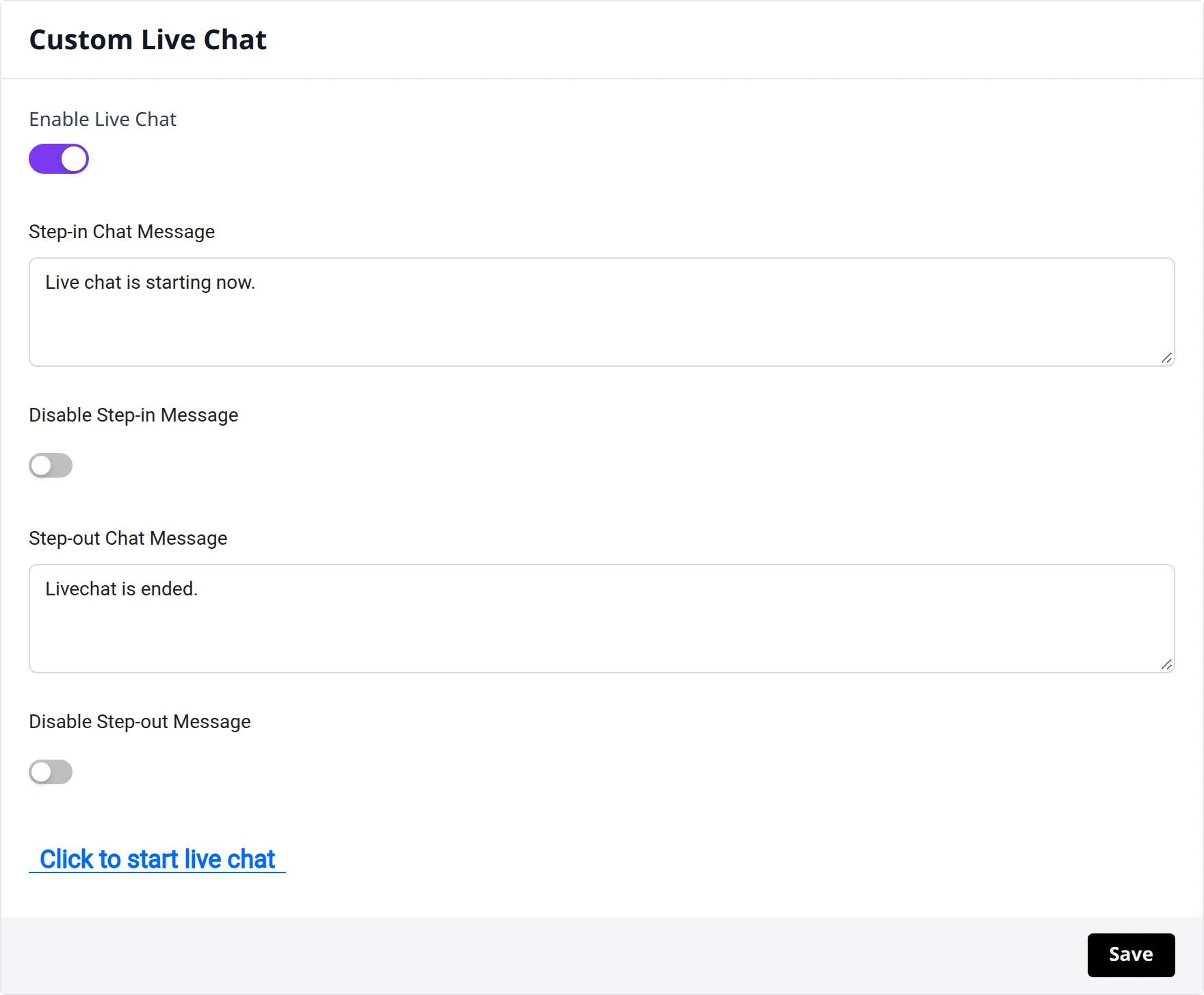
Custom Live Chat
The Custom Live Chat section collects all the live chat settings.
Enabling
- Enable Live Chat — activates the switch to enable Live Chat on your chatbot
Step-in Messages
When an operator enters the conversation, the visitor receives a dedicated message:
- Step-in Chat Message — the text shown when the operator enters the chat (e.g., Live chat is starting now.)
- Disable Step-in Message — activates the switch to not show the entry message
Step-out Messages
When the operator leaves the conversation, the visitor receives a closing message:
- Step-out Chat Message — the text shown when the operator exits the chat (e.g., Livechat is ended.)
- Disable Step-out Message — activates the switch to not show the exit message
Starting the chat
The Click to start live chat link opens the Live Chat to test its functionality.
Customize the Step-in and Step-out messages to maintain the same tone of voice as your brand: they help the visitor understand what is happening during the handover to the operator.
When you are finished, press Save to apply the changes.
Settings Reference