My Chatbots
From My Chatbots you manage all your AI agents in one place. Here you can see the training status of each chatbot, create new ones, and quickly access the configuration for each one.
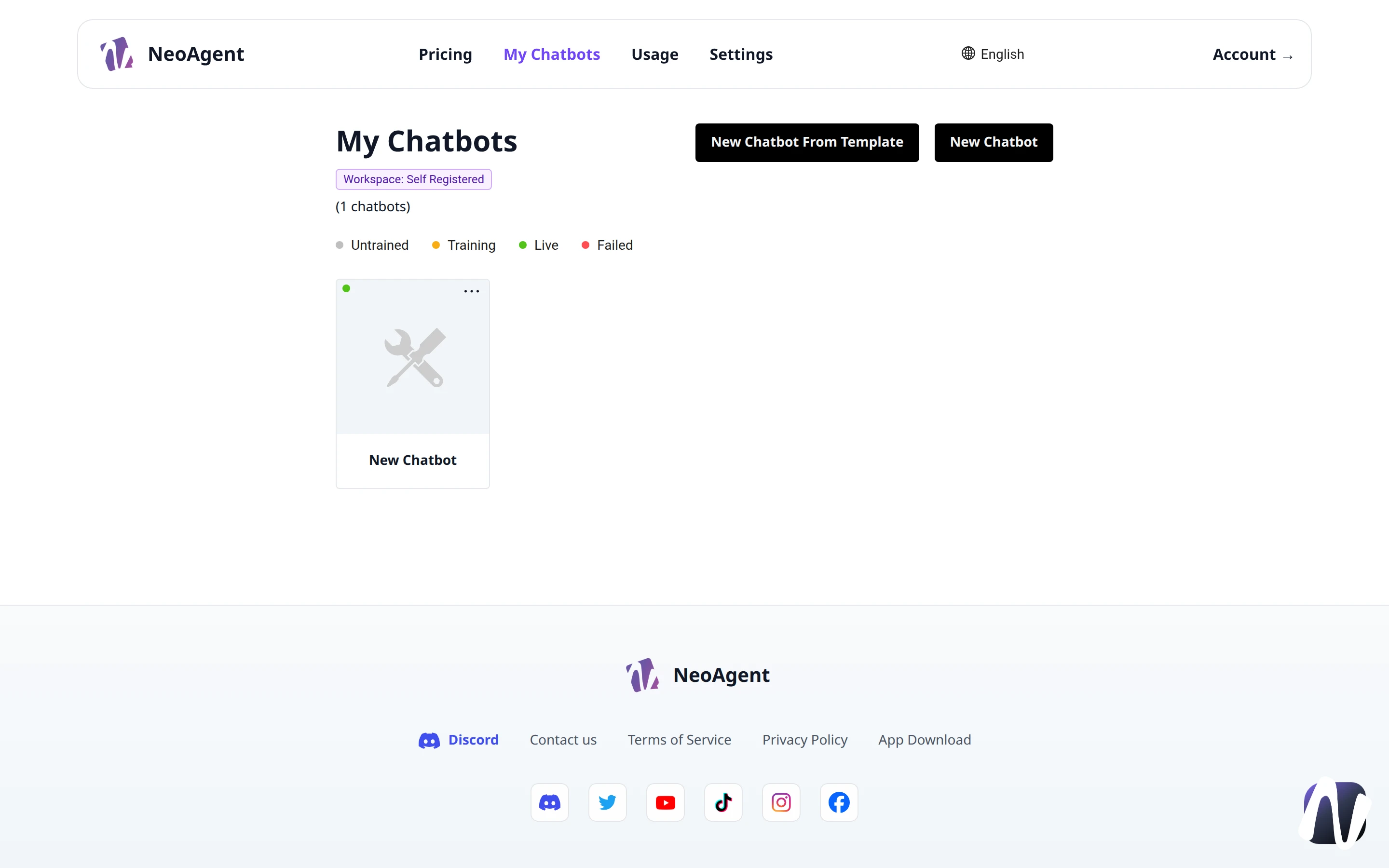
The Chatbot List
At the top of the page you will find the name of the active workspace (for example Self Registered) and the count of chatbots present, for example (1 chatbots).
Each chatbot is represented by a card. On the card you will find:
- The chatbot's name
- A status indicator (the colored dot in the top left)
- An action menu (the
...icon in the top right) for operations on the single card
Chatbot Statuses
The legend above the list summarizes the possible statuses:
- Untrained — the chatbot has been created but is not yet trained on your data
- Training — training is in progress
- Live — the chatbot is trained and ready for use
- Failed — training did not succeed and requires a new attempt
A chatbot in the Untrained or Training status is not yet operational. Wait until it moves to Live before integrating it into your site or applications.
Create a New Chatbot
At the top right, there are two buttons to get started:
- New Chatbot From Template — create a chatbot starting from a preconfigured model
- New Chatbot — create a chatbot from scratch, configuring it manually
From Template
Choose New Chatbot From Template when you want to quickly start from a configuration already ready for a common use case. You can still customize the chatbot at a later time.
From Scratch
Choose New Chatbot if you prefer to define the name, data, and behavior of your agent right away.
Change Language
The English selector in the header allows you to change the platform's interface language.
Assign a clear and recognizable name to each chatbot: if you manage more than one, it will help you distinguish them quickly in the list.