Chat Interface
Here you can fully customize your chatbot and enable or disable chat features displayed on your website or application.
Initial Messages
In particular, to provide clear guidance, you might consider customizing the "initial message" and "suggested messages."
The "initial message" serves as the first point of contact of your chatbot with users. This message sets the tone and invites users to interact.
The "suggested messages" serve as prompts to guide users towards their requests. They can be customized based on frequently asked questions or important aspects of your service, such as "What is example.com?" or "How does it work?". Essentially, these customizations guide the users' journey.
The Initial Messages correspond to the notification that automatically appears to engage visitors.

With these settings, you can define the timing and visibility of the initial message or notification.

Initial Messages Configuration
- Delay: Set how many seconds before showing the message
- Trigger: Define when to activate the notification (time, scroll, exit intent)
- Frequency: Control how often to show the message to the same users
Suggested Messages
In this section, you can set buttons with predefined messages that the user can click on to quickly start a conversation.
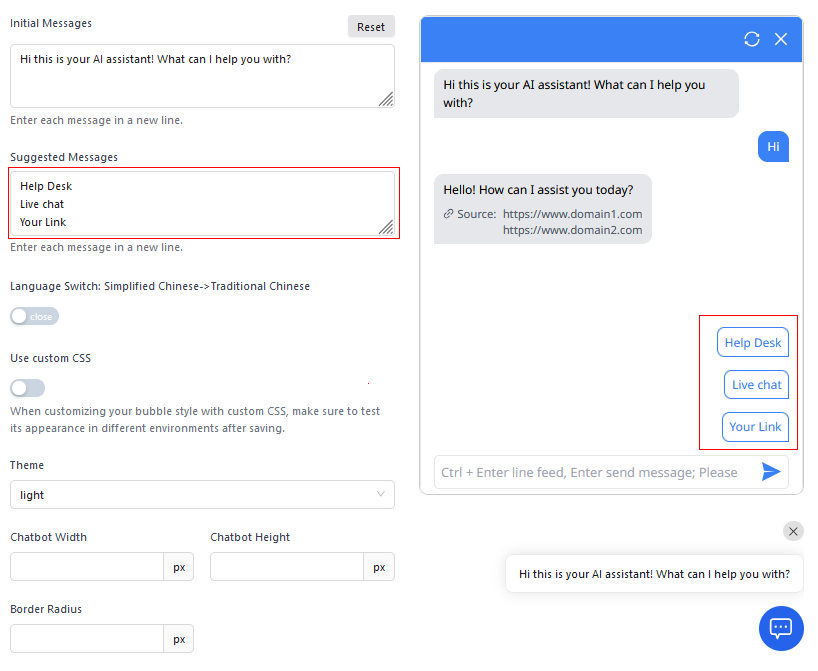
Best Practices for Suggested Messages
- Keep it Brief: Maximum of 3-4 words per button
- Use Clear Actions: "Book Now," "Price Info," "Support"
- Order by Priority: Most important buttons at the top
Language Change
Multilingual Support
The platform supports dynamic language switching, including support for:
- Simplified Chinese
- Traditional Chinese
- Italian
- English
- Other languages upon request
Custom CSS
You can modify every visual aspect of the bubble, the chat, and the text. You can also add animations in pure CSS.
Customization Examples
/* Customize the bubble */
.chat-bubble {
    background: linear-gradient(45deg, #007bff, #0056b3);
    border-radius: 50px;
    box-shadow: 0 4px 20px rgba(0, 0, 0, 0.15);
}

/* Customize the chat window */
.chat-window {
    border-radius: 20px;
    font-family: 'Arial', sans-serif;
}

/* Add animations */
.message-enter {
    animation: slideIn 0.3s ease-out;
}

@keyframes slideIn {
    from { transform: translateY(20px); opacity: 0; }
    to { transform: translateY(0); opacity: 1; }
}
When customizing the bubble with custom CSS, make sure to test its appearance in different environments after saving.
Human Takeover
Human Takeover is a feature that activates when the visitor requests support or when the chatbot does not know the answer. Human Takeover is a different function from Live Chat but can be combined because it allows capturing the lead through a form when requesting human intervention.
You can set up:
- Email address to direct the message
- Automatic response message for the user
- Availability hours for human support

Human Takeover Configuration
- Destination Email: Enter the support team's email
- Automatic Message: "An operator will contact you shortly"
- Trigger keywords: Words like "operator," "human," "support"
- Active Hours: Define when human support is available
Social and Privacy Policy
In the subsequent fields, you can add social channels and privacy policies. They will appear in the chat below the input field.
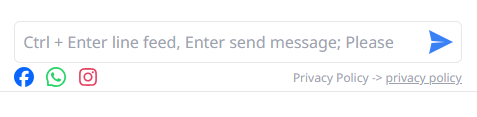
Supported Links
- Social Media: Facebook, Instagram, Twitter, LinkedIn
- Contacts: Email, phone, WhatsApp
- Legal: Privacy Policy, Terms of Service, Cookie Policy
- Support: FAQ, Help Center, Documentation
Link Configuration
For each link, you can specify:
- Displayed Text: How it appears in the chat
- Destination URL: Where the click leads
- Opening: Same window or new tab
- Custom Icon: To identify the type of link
Keep social links to a minimum (3-4 at most) to avoid cluttering the chat interface.